

Statistics
The statistics panel is opt-in. Pass --stat when you generate HTML — on the root command, a chart subcommand, or vizb ui — to add a statistics button on each chart. Omit --stat and charts render without the panel.
vizb data.csv --stat -o output.html # all categoriesvizb bar data.csv --stat=center,spread -o bar.html # specific groups onlyvizb ui data.json --stat -o report.html # JSON → HTML pipelineUse --stat alone (or --stat=all) for every metric group and the correlation matrix. Pass a comma-separated list to limit what appears: counts, center, spread, extremes, shape, percentiles, confidence, correlations.
When enabled, the button opens a panel over the chart area with two tabs — a descriptive table and a correlation matrix. Both are computed in a Web Worker. The UI never blocks, even on large datasets.
These stats work on any dataset. They are especially handy for exploring an unfamiliar CSV or JSON table before you decide what to chart.
Descriptive Statistics
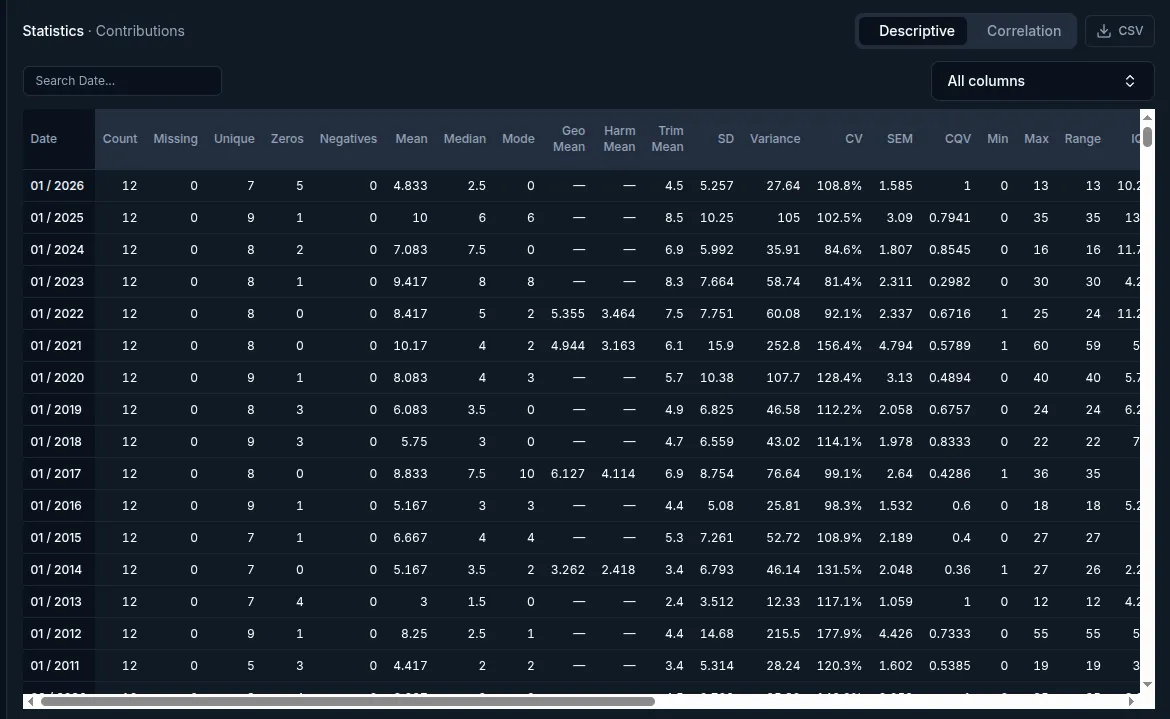
Section titled “Descriptive Statistics”A sortable, searchable table with one row per series and 33 metrics per row across seven groups:
| Group | Metrics |
|---|---|
| Counts | Count, Missing, Unique, Zeros, Negatives |
| Center | Mean, Median, Mode, Geo Mean, Harm Mean, Trim Mean |
| Spread | SD, Variance, CV, SEM, CQV |
| Extremes | Min, Max, Range, IQR, MAD, Lower Fence, Upper Fence, Outliers |
| Shape | Skew, Kurtosis |
| Percentiles | P1, P5, P10, P25, P75, P90, P95, P99 |
| Confidence | 95% CI Low, 95% CI High |
- Sort any column ascending/descending by clicking its header. Click the same header a third time to return to natural series order.
- Search to filter the visible series. A search box appears when the table has more than 20 series. The result count shows how many match.
- Virtualized rendering keeps the table fast even with thousands of series — only the visible rows mount.
- Format hints are built in. CV renders as a percentage. Count, Missing, Unique, Zeros, Negatives, and Outliers render as plain integers. Everything else renders as a compact significant-figure number with
NaNshown as—. - Export the table to CSV with the download button.
3D Charts
Section titled “3D Charts”For charts that use the z-axis (3D bars, 3D lines, 3D scatter), the descriptive table splits each series into per-z rows labeled Series / Z. Each row gets its own 33-metric profile so you can compare slices of a z-group separately instead of averaging them.
Correlation Matrix
Section titled “Correlation Matrix”A symmetric matrix of pairwise correlations between the chart’s entities — the series (x-axis), categories (y-axis), or z-axis values, depending on the data shape. Rendered as an echarts heatmap. Cells are colored on a diverging red → neutral → green scale for r ∈ [-1, 1].
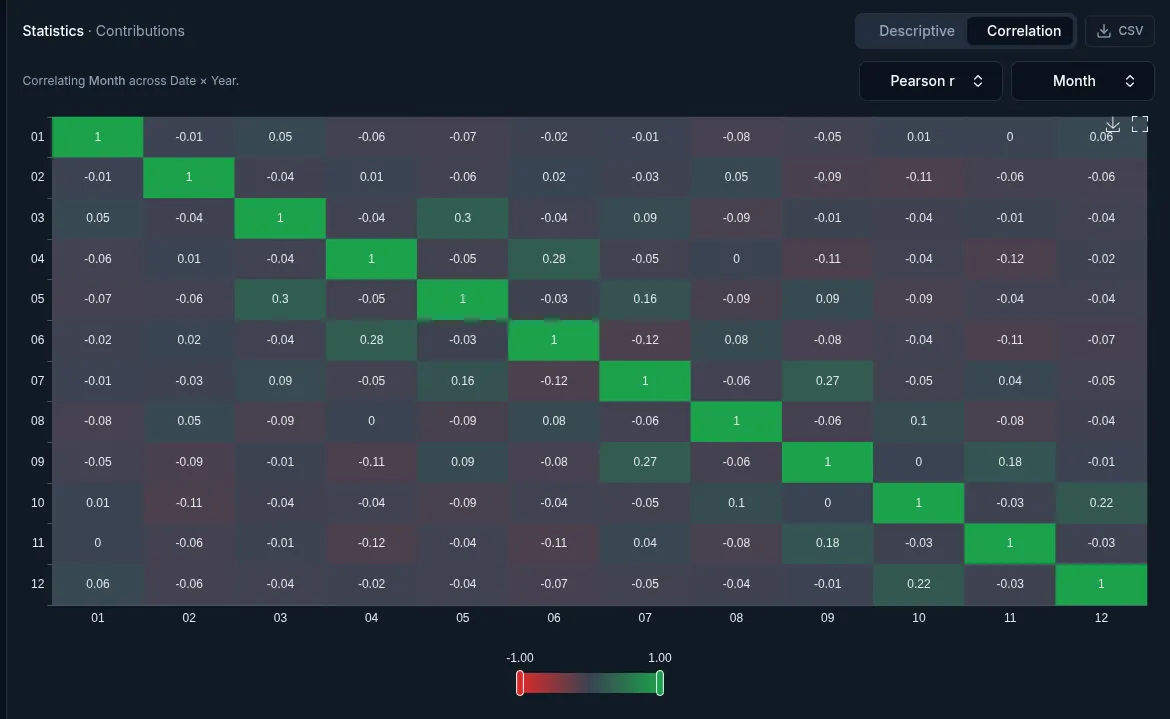
- Method toggle — pick any of four correlation methods. All are precomputed, so toggling is instant:
- Pearson r — linear correlation. The default. Best for roughly linear, roughly normal data.
- Spearman ρ — rank correlation. Robust to monotonic non-linear relationships and outliers.
- Kendall τ — rank-based, pair-counted. Also robust to non-linearity, often preferred on small samples with many ties.
- Distance — bias-corrected distance correlation (Székely & Rizzo 2014). Detects any dependence, not just monotonic — but values are in
[0, 1]and direction is lost. Requires at least four complete pairs per entity.
- Axis selector — choose which dimension supplies the matrix’s entities. The default auto-picks the smallest usable axis (x → y → z) so the matrix stays readable. You can override to correlate a different dimension when the data has more than one.
- Fullscreen — expand the matrix to the full viewport for large entity counts.
- Export the matrix to CSV (the file is suffixed with the active method, e.g.
descriptive-correlation-pearson.csv).
Cell labels are hidden once there are many entities. This keeps the grid readable. The tooltip always names both entities and shows the exact r. Cells that can’t be computed (a constant series, or too few overlapping points) are dropped and render empty.
Next Steps
Section titled “Next Steps”- Heatmap Chart — the chart-area heatmap (distinct from this matrix)
- 3D Charts — z-axis visualization (also where per-z stats come from)
- Tabular Data — charting CSV/JSON, where descriptive stats shine