

Bar Chart
The bar chart is vizb’s default chart type. It maps categories to bars, making it easy to compare values at a glance — whether you have one series or a full three-dimensional dataset. As you add dimensions, bars group and then grow into a full 3D WebGL scene.
Use bar charts when you want direct side-by-side comparison of discrete categories, benchmark names, or labeled data points. If you’re already using bar and want to fold in a z-axis without the depth, the Heatmap is a good complement.
How vizb builds it
Section titled “How vizb builds it”vizb maps your grouping columns to the chart’s visual axes:
| Dimension | Role |
|---|---|
| XAxis | Category axis — each unique X value becomes a bar group |
| YAxis | Series axis — each unique Y value becomes a separate bar within each X group |
| ZAxis | Depth layer — stacks Z values into the X/Y floor grid (3D only, requires echarts-gl) |
Dimensions
Section titled “Dimensions”Sample orders below (copy → sales.csv). The full file in the repo is examples/csv/sales.csv — about 10,000 rows across 2024–2025. Live dashboards: tabular-data.
order_date,region,category,product,quantity,amount
2024-01-01,Central,Hardware,Connector,16,2488.24
2024-01-02,East,Tools,Gear,42,207.08
2024-01-03,North,Mechanical,Sensor,20,3465.22
2024-01-04,West,Electronics,Valve,24,7633.44
2024-03-12,South,Industrial,Widget,31,5088.10
2024-06-18,East,Electronics,Relay,12,2214.50
2024-09-05,North,Hardware,Bolt,28,1724.27
2024-12-20,West,Tools,Gadget,19,2938.82
2025-02-08,Central,Mechanical,Valve,27,7350.26
2025-04-14,South,Electronics,Widget,41,3278.77
2025-07-22,East,Industrial,Connector,15,5093.42
2025-10-03,North,Tools,Gear,33,4102.15
2025-11-19,West,Hardware,Sensor,22,2890.40
2025-12-28,South,Mechanical,Gadget,26,611.32
| order_date | region | category | product | quantity | amount |
|---|---|---|---|---|---|
| 2024-01-01 | Central | Hardware | Connector | 16 | 2488.24 |
| 2024-01-02 | East | Tools | Gear | 42 | 207.08 |
| 2024-01-03 | North | Mechanical | Sensor | 20 | 3465.22 |
| 2024-01-04 | West | Electronics | Valve | 24 | 7633.44 |
| 2024-03-12 | South | Industrial | Widget | 31 | 5088.10 |
| 2024-06-18 | East | Electronics | Relay | 12 | 2214.50 |
| 2024-09-05 | North | Hardware | Bolt | 28 | 1724.27 |
| 2024-12-20 | West | Tools | Gadget | 19 | 2938.82 |
| 2025-02-08 | Central | Mechanical | Valve | 27 | 7350.26 |
| 2025-04-14 | South | Electronics | Widget | 41 | 3278.77 |
| 2025-07-22 | East | Industrial | Connector | 15 | 5093.42 |
| 2025-10-03 | North | Tools | Gear | 33 | 4102.15 |
| 2025-11-19 | West | Hardware | Sensor | 22 | 2890.40 |
| 2025-12-28 | South | Mechanical | Gadget | 26 | 611.32 |
1D (X axis)
Section titled “1D (X axis)”A single series of bars — one bar per X category. The height is the raw value. This is the simplest view: run a benchmark, pick one grouping column, get a bar per result.
Natural-language prompt after installing the vizb skill. The agent runs the CLI.
/vizb sales.csv as bar by order_datevizb bar sales.csv -g order_date -p x -o out.htmlPOST / on vizb serve. The API takes inlineinput, not a file path.
{ "input": "order_date,region,category,product,quantity,amount\n2024-01-01,Central,Hardware,Connector,16,2488.24\n2024-01-02,East,Tools,Gear,42,207.08\n2024-01-03,North,Mechanical,Sensor,20,3465.22\n2024-01-04,West,Electronics,Valve,24,7633.44\n2024-03-12,South,Industrial,Widget,31,5088.10\n2024-06-18,East,Electronics,Relay,12,2214.50\n2024-09-05,North,Hardware,Bolt,28,1724.27\n2024-12-20,West,Tools,Gadget,19,2938.82\n2025-02-08,Central,Mechanical,Valve,27,7350.26\n2025-04-14,South,Electronics,Widget,41,3278.77\n2025-07-22,East,Industrial,Connector,15,5093.42\n2025-10-03,North,Tools,Gear,33,4102.15\n2025-11-19,West,Hardware,Sensor,22,2890.40\n2025-12-28,South,Mechanical,Gadget,26,611.32\n", "parser": "csv", "grouping": { "columns": [ "order_date" ], "pattern": "x" }, "charts": { "types": [ "bar" ] }, "output": { "format": "html" }}GitHub Action step. Same conversion as the CLI.
- uses: goptics/vizb@v0 with: file: sales.csv group: order_date group-pattern: x charts: bar output-html: out.html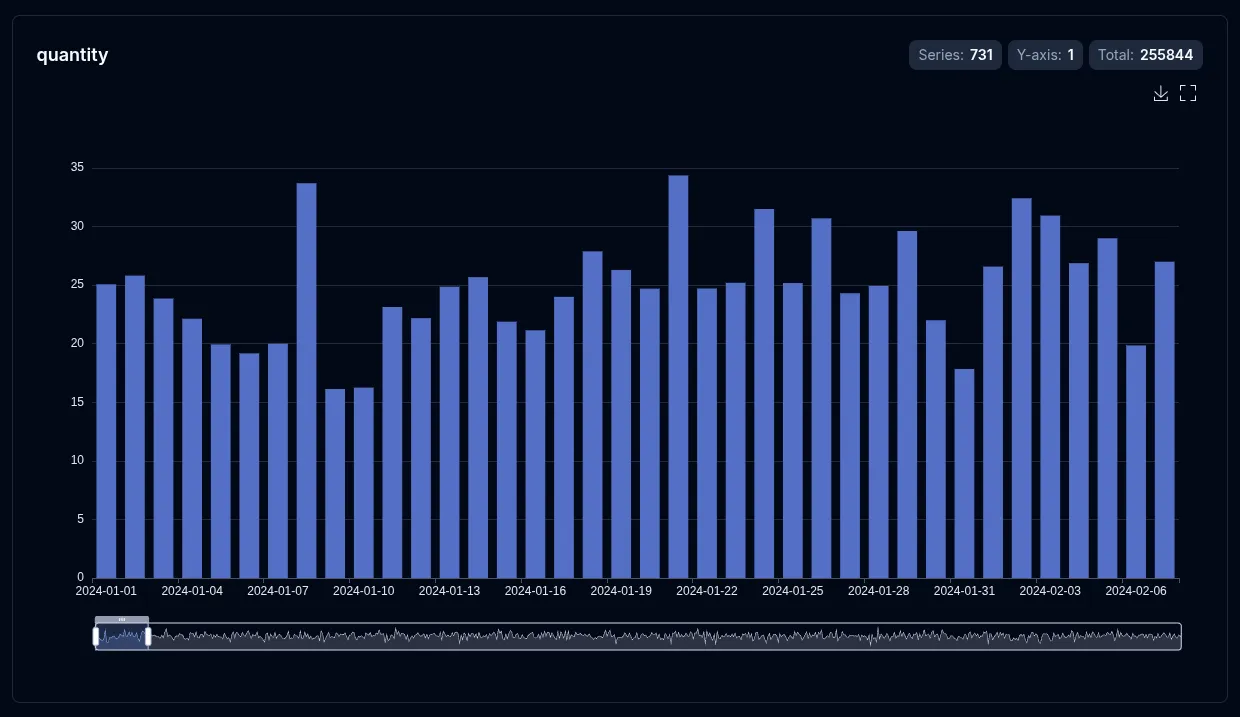
2D (X + Y axes)
Section titled “2D (X + Y axes)”Grouped bars: X stays on the category axis, and each distinct Y value becomes its own bar series side-by-side within each X group. The legend lists the Y values so you can toggle individual series on and off.
Natural-language prompt after installing the vizb skill. The agent runs the CLI.
/vizb sales.csv as bar by region & categoryvizb bar sales.csv -g region,category -p x,y -o out.htmlPOST / on vizb serve. The API takes inlineinput, not a file path.
{ "input": "order_date,region,category,product,quantity,amount\n2024-01-01,Central,Hardware,Connector,16,2488.24\n2024-01-02,East,Tools,Gear,42,207.08\n2024-01-03,North,Mechanical,Sensor,20,3465.22\n2024-01-04,West,Electronics,Valve,24,7633.44\n2024-03-12,South,Industrial,Widget,31,5088.10\n2024-06-18,East,Electronics,Relay,12,2214.50\n2024-09-05,North,Hardware,Bolt,28,1724.27\n2024-12-20,West,Tools,Gadget,19,2938.82\n2025-02-08,Central,Mechanical,Valve,27,7350.26\n2025-04-14,South,Electronics,Widget,41,3278.77\n2025-07-22,East,Industrial,Connector,15,5093.42\n2025-10-03,North,Tools,Gear,33,4102.15\n2025-11-19,West,Hardware,Sensor,22,2890.40\n2025-12-28,South,Mechanical,Gadget,26,611.32\n", "parser": "csv", "grouping": { "columns": [ "region", "category" ], "pattern": "x,y" }, "charts": { "types": [ "bar" ] }, "output": { "format": "html" }}GitHub Action step. Same conversion as the CLI.
- uses: goptics/vizb@v0 with: file: sales.csv group: region,category group-pattern: x,y charts: bar output-html: out.html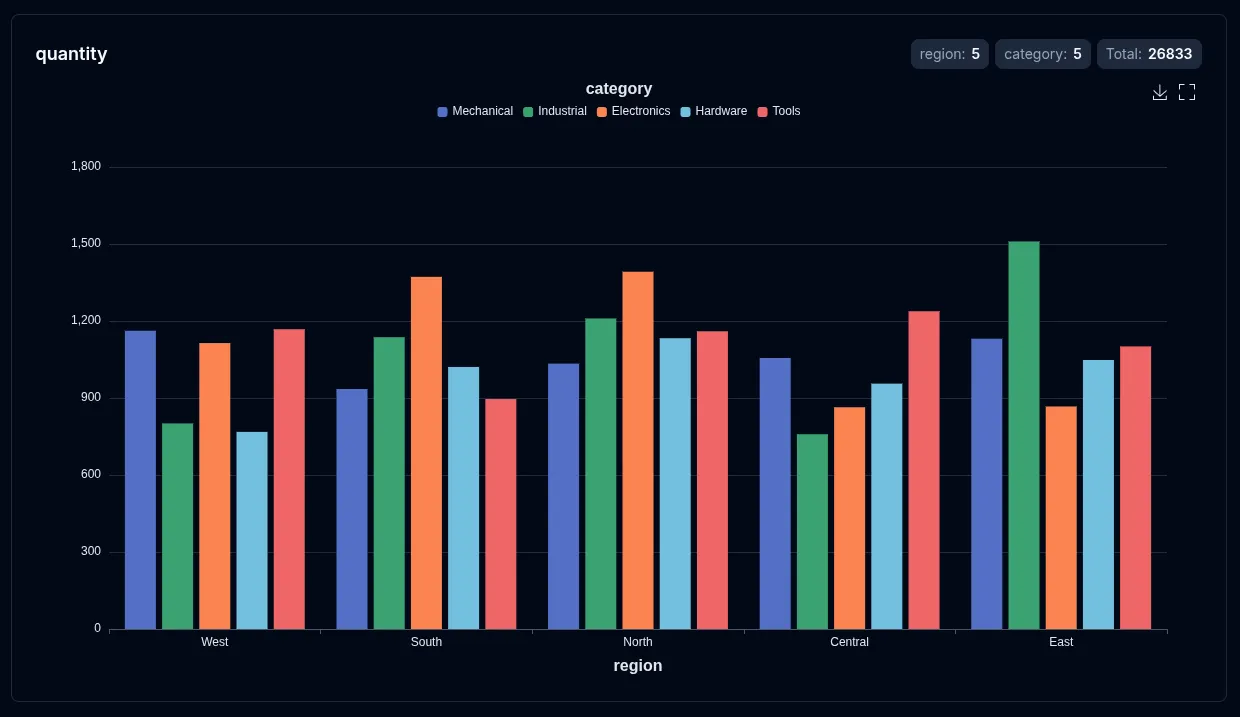
Add --stack to show one bar per X value with the Y series stacked inside it. This keeps the grouped data shape but changes the 2D bar rendering to a part-to-whole view.
Natural-language prompt after installing the vizb skill. The agent runs the CLI.
/vizb sales.csv as bar by region & category, stackedvizb bar sales.csv -g region,category -p x,y --stack -o stacked.htmlPOST / on vizb serve. The API takes inlineinput, not a file path.
{ "input": "order_date,region,category,product,quantity,amount\n2024-01-01,Central,Hardware,Connector,16,2488.24\n2024-01-02,East,Tools,Gear,42,207.08\n2024-01-03,North,Mechanical,Sensor,20,3465.22\n2024-01-04,West,Electronics,Valve,24,7633.44\n2024-03-12,South,Industrial,Widget,31,5088.10\n2024-06-18,East,Electronics,Relay,12,2214.50\n2024-09-05,North,Hardware,Bolt,28,1724.27\n2024-12-20,West,Tools,Gadget,19,2938.82\n2025-02-08,Central,Mechanical,Valve,27,7350.26\n2025-04-14,South,Electronics,Widget,41,3278.77\n2025-07-22,East,Industrial,Connector,15,5093.42\n2025-10-03,North,Tools,Gear,33,4102.15\n2025-11-19,West,Hardware,Sensor,22,2890.40\n2025-12-28,South,Mechanical,Gadget,26,611.32\n", "parser": "csv", "grouping": { "columns": [ "region", "category" ], "pattern": "x,y" }, "charts": { "types": [ "bar" ], "configs": [ { "type": "bar", "stack": true } ] }, "output": { "format": "html" }}GitHub Action step. Same conversion as the CLI.
- uses: goptics/vizb@v0 with: file: sales.csv group: region,category group-pattern: x,y charts: bar chart: "bar:stack" output-html: stacked.html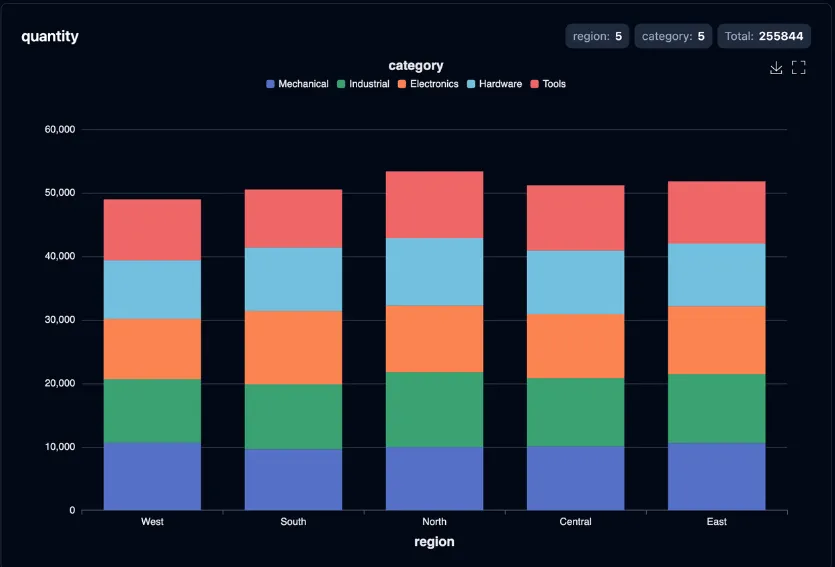
3D (X + Y + Z axes)
Section titled “3D (X + Y + Z axes)”WebGL bar3D scene: X and Y form a grid floor, and Z values stack as depth layers on each (X, Y) cell. Rotate, zoom, and pan the scene in the browser. Requires echarts-gl (bundled automatically).
Natural-language prompt after installing the vizb skill. The agent runs the CLI.
/vizb sales.csv as bar, split order_date into month & date (skip the year), category as depthvizb bar sales.csv -g order_date,category -p "[-y{Month}-x{Date}],z{Category}" -o out.htmlPOST / on vizb serve. The API takes inlineinput, not a file path.
{ "input": "order_date,region,category,product,quantity,amount\n2024-01-01,Central,Hardware,Connector,16,2488.24\n2024-01-02,East,Tools,Gear,42,207.08\n2024-01-03,North,Mechanical,Sensor,20,3465.22\n2024-01-04,West,Electronics,Valve,24,7633.44\n2024-03-12,South,Industrial,Widget,31,5088.10\n2024-06-18,East,Electronics,Relay,12,2214.50\n2024-09-05,North,Hardware,Bolt,28,1724.27\n2024-12-20,West,Tools,Gadget,19,2938.82\n2025-02-08,Central,Mechanical,Valve,27,7350.26\n2025-04-14,South,Electronics,Widget,41,3278.77\n2025-07-22,East,Industrial,Connector,15,5093.42\n2025-10-03,North,Tools,Gear,33,4102.15\n2025-11-19,West,Hardware,Sensor,22,2890.40\n2025-12-28,South,Mechanical,Gadget,26,611.32\n", "parser": "csv", "grouping": { "columns": [ "order_date", "category" ], "pattern": "[-y{Month}-x{Date}],z{Category}" }, "charts": { "types": [ "bar" ] }, "output": { "format": "html" }}GitHub Action step. Same conversion as the CLI.
- uses: goptics/vizb@v0 with: file: sales.csv group: order_date,category group-pattern: "[-y{Month}-x{Date}],z{Category}" charts: bar output-html: out.html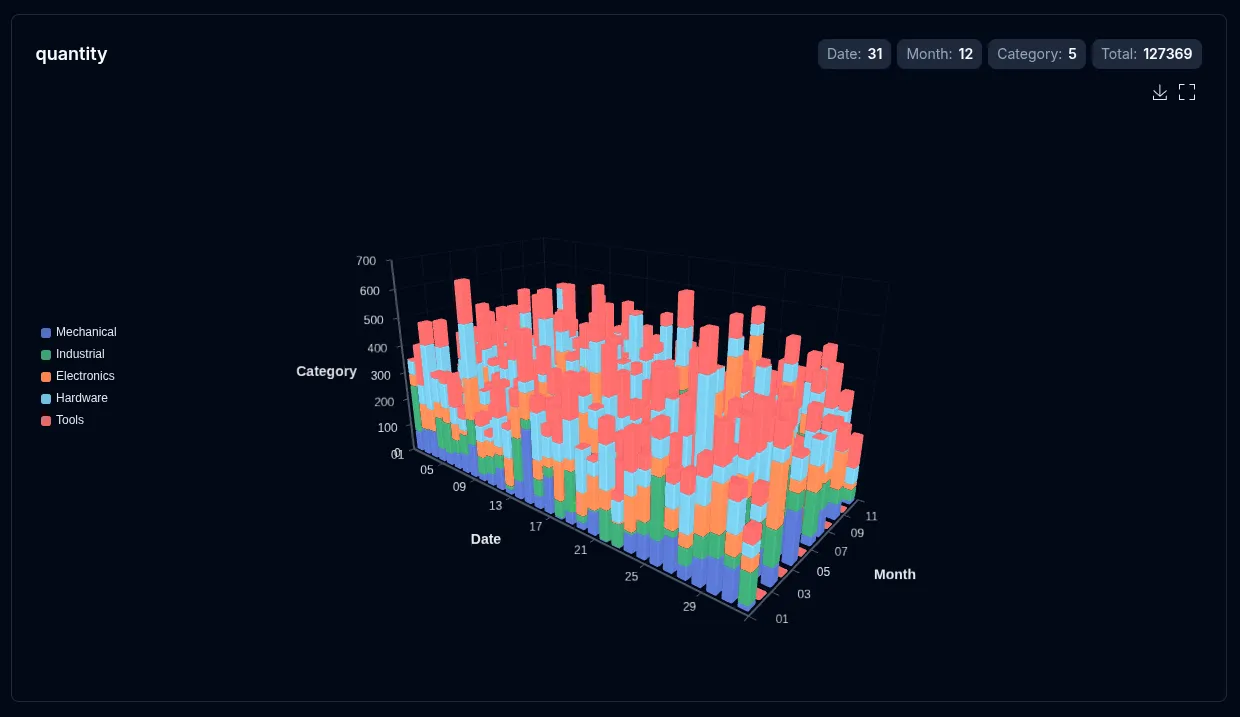
--select (csv/json)
Section titled “--select (csv/json)”--select is repeatable (csv/json only). With explicit -g / -p / -r, it picks which numeric columns get their own chart (optional {label} renames each chart). Without group, it switches to solo value / mixed / multi-stat modes that plot raw columns as coordinate axes.
Natural-language prompt after installing the vizb skill. The agent runs the CLI.
/vizb sales.csv as bar by region & product, amount & quantityvizb bar sales.csv -g region,product -p x,y --select amount,quantity -o bars.htmlPOST / on vizb serve. The API takes inlineinput, not a file path.
{ "input": "order_date,region,category,product,quantity,amount\n2024-01-01,Central,Hardware,Connector,16,2488.24\n2024-01-02,East,Tools,Gear,42,207.08\n2024-01-03,North,Mechanical,Sensor,20,3465.22\n2024-01-04,West,Electronics,Valve,24,7633.44\n2024-03-12,South,Industrial,Widget,31,5088.10\n2024-06-18,East,Electronics,Relay,12,2214.50\n2024-09-05,North,Hardware,Bolt,28,1724.27\n2024-12-20,West,Tools,Gadget,19,2938.82\n2025-02-08,Central,Mechanical,Valve,27,7350.26\n2025-04-14,South,Electronics,Widget,41,3278.77\n2025-07-22,East,Industrial,Connector,15,5093.42\n2025-10-03,North,Tools,Gear,33,4102.15\n2025-11-19,West,Hardware,Sensor,22,2890.40\n2025-12-28,South,Mechanical,Gadget,26,611.32\n", "parser": "csv", "grouping": { "columns": [ "region", "product" ], "pattern": "x,y" }, "select": [ "amount,quantity" ], "charts": { "types": [ "bar" ] }, "output": { "format": "html" }}GitHub Action step. Same conversion as the CLI.
- uses: goptics/vizb@v0 with: file: sales.csv group: region,product group-pattern: x,y select: amount,quantity charts: bar output-html: bars.htmlSee Select for the full mode reference, and Group vs Select for when to use each.
Auto-value mode (all-numeric data)
Section titled “Auto-value mode (all-numeric data)”On an all-numeric CSV/JSON file, vizb auto-detects the first 2–3 columns as coordinate axes and renders value-type bars — with 3+ columns it auto-enables 3D (bar3D). See Auto-value for the inference rules; solo --select overrides it.
Natural-language prompt after installing the vizb skill. The agent runs the CLI.
/vizb noise-surface.csv as bar, 3d visual map./bin/vizb bar noise-surface.csv -o surface.html --3d-visualmapPOST / on vizb serve. The API takes inlineinput, not a file path.
{ "input": "<contents of noise-surface.csv>", "parser": "csv", "charts": { "types": [ "bar" ], "configs": [ { "type": "bar", "threeDVisualMap": true } ] }, "output": { "format": "html" }}GitHub Action step. Same conversion as the CLI.
- uses: goptics/vizb@v0 with: file: noise-surface.csv charts: bar chart: "bar:3d-visualmap" output-html: surface.html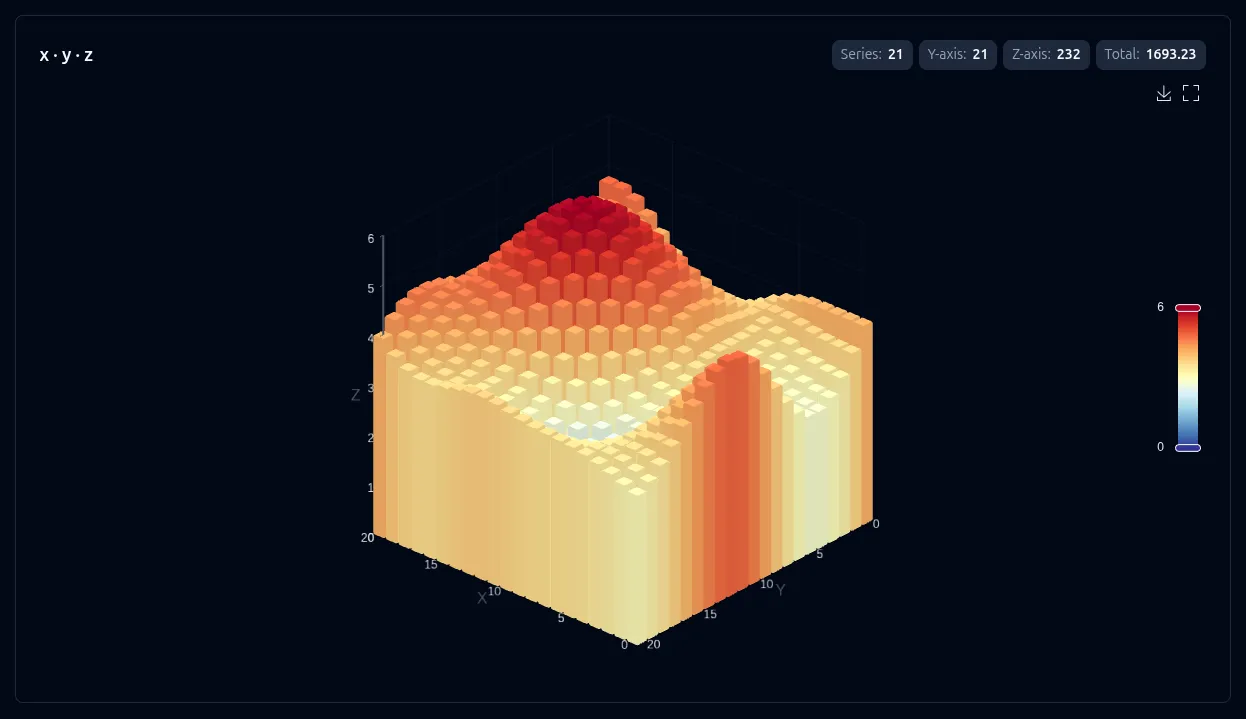
Settings
Section titled “Settings”These settings apply to bar charts:
| Setting | CLI flag | UI toggle | Notes |
|---|---|---|---|
| Sort | --sort asc|desc |
Sort control | Sorts bars along the X axis |
| Stack | --stack |
Stack series | Stacks 2D grouped Y series into X totals; ignored for z data and log scale |
| Labels | --show-labels |
Show labels | Displays value on each bar |
| Swap | --swap |
Axis switcher | Rotates which column maps to X vs Y |
| Horizontal | --horizontal |
Horizontal toggle | Renders grouped bars horizontally — 2D only |
| Border radius | --border-radius <int>[,int...] |
— | 1–4 corner radii px (CSS/ECharts TL,TR,BR,BL); single value = all corners; stacked: outer segment only, first two values on free end (rest square) — 2D only (CLI/config; not in UI settings) |
| Background | --bg |
— | Category background behind each bar. Bare --bg writes background.active: true (unspecified style keys keep ECharts defaults). Styled: --bg 'color=…;borderColor=#000'. 3D skips the flag — 2D only (CLI/config; not in UI settings) |
| Scale (log) | --scale log or --scale 'type=log;axes=x' |
Scale toggle | linear / log (value axis), or bag for per-axis log |
| 3D view | --3d |
3D view | Value 3D for x+y data (y → depth, metric → height) |
| 3D visual map | --3d-visualmap |
3D visual map | Metric gradient coloring — on by default with --3d; grouped/value 3D |
| Auto-rotate | --3d-rotate |
Auto rotate | Spins the 3D scene — 3D only |
Override settings for just this chart type without affecting others:
# Sort ascending and show labels on bars onlyvizb bar sales.csv -g region,category --sort asc -l -o out.html
# Log scale on the bar chart onlyvizb bar sales.csv -g region,category --scale log -o out.html
# Per-axis log bag (unwrapped; no braces on --scale)vizb bar sales.csv --scale 'type=log;axes=x' -o out.html
# Horizontal grouped barsvizb bar sales.csv -g region,category -p x,y --horizontal -o out.html
# Stacked 2D barsvizb bar sales.csv -g region,category -p x,y --stack -o stacked.html
# Rounded corners (single value = all corners; stacked: outer segment uses first two as free-end cap)vizb bar sales.csv -g region,category -p x,y --border-radius 8 -o rounded.html
# Free outer top only on non-stacked bars (TL,TR,BR,BL)vizb bar sales.csv -g region,category -p x,y --border-radius 8,8,0,0 -o free-outer.html
# Stacked: only top segment rounded; first two values are the free-end capvizb bar sales.csv -g region,category -p x,y --stack --border-radius 8,4 -o stacked-rounded.html
# Category background (bare = on; unspecified style keys keep ECharts defaults)vizb bar sales.csv -g region,category -p x,y --bg -o bg.html
# Styled category background (semicolon-separated props; 2D only)vizb bar sales.csv -g region,category -p x,y --bg 'color=rgba(180, 180, 180, 0.2);borderColor=#000' -o bg.html